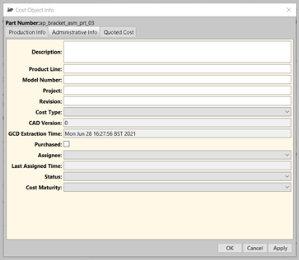
The Cost Object Info window contains many of the same fields as the Cost Guide (see Initial costing: the Cost Guide), and can be used to change settings for your component. aPriori displays the Cost Object Info window when you click Edit > Production Info, Edit > Administrative Info, or Edit > Quoted Cost from the Manufacturing Process panel.
Note: Your aPriori System Administrator may have customized the Cost Object Info tabs so that the displayed fields reflect only your company’s standards and workflows. This section describes how this Cost Object Info tabs appear out of the box and may differ from what you see on your screen. For more information, see the “Managing Dialog Views” section of the aPriori Professional System Administration Guide.
Production Info tab

You can specify the following information on the Production Info tab:
-
Select the process group from the Process Group drop-down list to make that group the default for subsequent new components.
-
If you need to modify the default Digital Factory, click
 next to the Digital Factory field to display the window.
 -
The default Digital Factory is specified by the selected process group.
-
Check the Use Primary Digital Factory for secondary processes box if you want secondary processes, such as heat treatments and surface treatments, to use the same Digital Factory as the primary process group, even if the Digital Factory is changed.
-
If the secondary processes are frequently performed at a different location than the primary processes, uncheck this box.
-
Check the Use Primary Digital Factory for Tool Shop to use the primary digital factory for the tool shop or deselect to select an alternative digital factory.
-
-
If you need to modify the default material, click
next to the Material field to display the Material Selection window. The default material is either the MCAD material value or the Digital Factory default. -
Enter the blank thickness (mm) in the Blank Thickness field.
-
Enter the number of parts to be produced in one year in the Annual Volume field.
-
Enter the length of the product life cycle, in years, in the Production Life field.
-
Select the costing method.
-
Select aPriori if you want aPriori to compute the component cost.
-
Select Manual and select the currency from the drop-down list to enter the component cost.
-
-
Select the batch size. This is typically one month’s production.
-
Select aPriori to have this automatically calculated from your Annual Volume/12.
-
Select Manual to enter a specific value.
-
-
Specify a value in the Target Cost field if you know how much you want or expect the fully burdened cost of the part to be and wish to compare it to the results of costing operations. (See Production Scenario Tab: Targets for more details about how to use this value.)
-
Specify a value in the Target Finished Mass field if you have a weight goal for your finished component. (See Production Scenario Tab: Targets for more details about how to use this value.)

Administrative Info Tab
Use this tab to enter company attribute information about the component.

See Production Scenario Tab: Attributes for more information about the fields on this tab.
Quoted Cost Tab
Use the fields on this tab to enter information that is used in cost per mass analyses and to compare it to the aPriori cost estimate. It can also be used in reports.
The following fields are available:
-
Factory (Source): Enter the factory or source for the quoted cost information.
-
Material Composition: Enter the material used to create the quoted cost.
-
Process Routing: Enter the process used to create the quoted cost.
-
Total Cost: Enter the total quoted cost to manufacture the component.
-
Total Capital Investments: Enter the total quoted capital investment cost to manufacture the component.
-
Currency: Select the currency used for the quoted costs.
-
Currrency Version: Select the currency version if one exists.
-
Annual Volume: Enter the quoted number of components to be produced per year.
-
Quoted Date: Click
 and select the date of the quote.

Purchased parts
You can specify that a component is a purchased part in several places, including the Purchased checkbox in the Administrative Info tab of the Cost Object Info dialog, the Cost Guide, the Bulk Loader, and the mapped Purchased field in the BOM Loader.
Parts designated as "purchased parts" are reflected as material costs for the assemblies in which they are included, so the cost breakdown matches typical customer cost accounting practices. View the detailed cost breakdown for the purchased part by opening the individual component. For purchased parts:
-
Material cost = piece part cost (PPC)
-
All costs which are used for PPC calculation except % margin is zeroed out, but only for the component level
-
Fully burdened cost = piece part cost plus total amortized investment
-
Rolling up costs is only available if a purchased component is inside an assembly or any other container. Otherwise it is a regular part/assembly.